Showing posts with label GUI Automation. Show all posts

Wednesday, January 25, 2017

AUTOMATION 26 - Design patterns for automation

Technical level: *****

Today's article assumes a familiarity with ideas such as methods, privacy, JUnit tests and objects that was covered in my Java series.

The developer gurus I work with are really keen on design patterns, and often consider understanding them more important than knowing about the details of a language.

A design pattern is a set way of approaching a standard problem.  There are a couple of them floating around for Selenium, but one of the most important ones I've heard about is the page object design pattern.  There will be extensive references at the bottom of the page for further reading.

I'm going to go through an example of how I've analysed how to create automation.  You might take a slightly different approach, but hopefully you'll find the discussion of my approach useful enough to understanding what you need to consider.

First of all, in page object design, you're going to create an object for every page in your application.  This "page object" will know all about the which, what and how of the page,

  • Which elements are on the page.
  • What their state is.
  • How to perform actions on the page


In addition, it's generally a good idea to have the checking that performs pass/fail in your automation separate to the page object itself.  The page object will handle everything about doing things on the page, but will pass out information on the page to this test layer, so it's the test layer which performs the checks.

Our example ... Twitter

Okay, so we're back with Twitter again (I use this a lot).  Every page on Twitter can be turned into a page object.

For simplicity we'll say for now that there's just two.  The main feed page below,


And the login and registration page here,


You need to create objects for both, with a third layer to contain your JUnit tests.  Again we covered JUnit tests extensively in our Java series.

To make life easier, we're going to focus in and do the analysis on login and registration, and focus on this part,


Which elements are on the page "LOCATORS"

Richard Bradshaw's article on page object design here calls the kind of functionality we're going to look at now "locators", and I just love that term for describing this.

We need to create function calls to define all the page elements on the page we'll want to use.  We could do this by either defining WebElements inside the page object, or having methods which return the WebElement.

We need to choose one or the other, and stick to it.  Most importantly we want these to be private.  Only our page object should want to locate the WebElement directly.  The "what" and "how" parts of the object we design will allow external parts of the system to interface with these elements as needed.

Lets do the analysis, we have the following ...

Text fields,

  • Phone, email or username
  • Password
  • Full name
  • Email
  • Password


Buttons

  • Log in
  • Sign up for Twitter


Check boxes

  • Remember me


Links

  • Forgot password?


We need to define them all.  There's also an additional one we might want to define, you can get an error message ...


What their state is "STATE"

This is a bit trickier, but you might want to return the state of the page.  These methods should be public, and will be used by your JUnit tests.  They are similar to the idea of "getters".


So examples might be,

  • Get page content.  Return the text on the entire page.  So the JUnit test can check for certain content.
  • Get error message box state.  Return true if the error message box is displayed.
  • Get error message box content.  Return the text inside the error message box.


How to perform actions "ACTIONS"

My team call these flows.  Rather than just a single action, they're a sequence of actions.  Obviously these methods would need to be public.

If we look at our chosen page, there are three flows ...

Flow 1 - login

  • Enter username
  • Enter password
  • Select/deselect remember me
  • Select log in button


Flow 2 - register

  • Enter full name
  • Enter email
  • Enter password
  • Select sign up for Twitter


Flow 3 - forgot password

  • Select forgot password link


Notice how if this was turned into a test script, all these flows relate to the "action" not "expected result" part of a test script table.  This is intentional, as the part that checks expected result should be an assertion within the JUnit method.


And finally...

The JUnit method can string together sequences of these page object, to create a series of tests.

Let's look at login, we can call that perform login method in multiple tests.  We can leave some fields blank, we can give it correct data, we can give it false data.  Then we should use an assertion within our JUnit to find out if the system is right or now,

  • If we give the correct data, we should find the words "Home", "Moments", "Notifications" on the page.
  • If we give a field as blank, we should get an error message
  • If we give wrong details, we should get an error message


This diagram should explain the relationship (and I'm so sorry, the colour scheme seemed a good idea at the time) ...


The key thing is this approach follows two key rules of software development.  Using methods, which we discussed yesterday.  But also encapsulation, only giving access to items that another level really needs.


Further reading

There's a lot to read about, so this section contains some useful next steps ...

Tuesday, January 24, 2017

AUTOMATION 25 - Thinking about maintainability with methods

Today we're picking up again on the automation series of articles that I started last year.  You might wish to refresh yourself with what we've covered by following this link.

Technical level: ***

Previously on this blog, I’ve taken you through some an introduction to Java, which has been about understanding and playing with some core features around using the language effectively.  I chose Java because it’s popular, and my team uses it, but some of the concepts coming out about using methods, data hiding and objects are common to many languages.

Meanwhile, on the automation series, we took a look at several technologies, thinking about how they worked best … or not so well for checking.

In doing so, we’ve covered a lot of material, over 40 articles so far!  And here’s where it starts to pay off, as we bring the two together for the remainder of the automation series!

I’ve held a whole load of interviews with people around Wellington to talk about their automation, where people are now, and what “came before this”.  What’s a common story is that initially it’s been seen that they wanted testers to write automation scripts, and their testers weren’t very good at coding.  So they’ve ended up picking tools like Selenium IDE or Coded UI.

These kinds of record and playback tools can have their advantages if used well, but they’re rather clunky.  Typically they use a very simplistic language, which doesn’t allow for loops, ifs, methods or any other features of a programmable language.

So you end up with long scripts, with no real brains to them – you don’t benefit from any kind of code reuse, so everything’s written out long hand.

So you write out 100 scripts this way, and the first few steps of each one is to log in.  Then your project changes … there’s a decision to scrap the current login page, and use Facebook to provide your login service.  The developers say this isn't too big a change – but it won’t be quick for your automation.  You will need to find a change that works, and then copy and paste it into a 100 test scripts.

I like to say that in such scenarios we've taken on (without realising it) a kind of test automation debt, one that because of the limitation of our tool, we can never pay off.  Some of this will feel a bit deja vu because we talked about it here under our denial in testing series.

This is where the power of computer languages come into their own and why Selenium Webdriver (over IDE) has really come into it’s own.  As we've covered, Selenium Webdriver is driven by a fully structured language like Java.

Using WebDriver and a language like Java, you can define your steps to login as a method, and have all your 100 test scenarios call that method.

Now when the login changes, you change the login method, and the change ripples down to all the tests that use it.  This is the heart of building maintainable code, using the features of your programming language to reduce your overhead.

Don’t define something twice, when you can extract it as a method and use it over multiple tests.  We looked at how methods help us to avoid tangled code during our Java series here.

Next time we'll consider some design patterns which can be used with tools like Selenium WebDriver.

Wednesday, August 17, 2016

AUTOMATION 24 - GUI 11, unlocking true automated checking with JUnit

Techncial level: *****

To date we’ve had a couple of experiments with Selenium WebDriver using Java – these centered on,

  • learning how to use commands
  • the basics of the WebDriver / WebElement objects
  • how we can manipulate and read page content.


What we haven’t really done so far is create an automated check.  Oh, we’ve used "if" statements to do comparisons and put content to screen to see what happens, but much like with our initial testing of dice classes under unit testing, it requires someone to look through screen output and go “yeah … that’s okay”.

In the words of Phillip J. Fry, “that dog won’t hunt, Monsignor”.  It's automatic execution, with manual checking.  We can do better!


To unlock the power of Selenium WebDriver, you need something which will assert and report if something is true – and in Java that’s the JUnit framework.

The Junit framework allows you to define multiple @Test test methods which are run as part of your build process.  An important part of these methods is the assert command such as AssertTrue and AssertFalse.

AssertTrue ( error_txt, Boolean_comparison);

AssertFalse ( error_txt, Boolean_comparison);

These commands are similar – they have two arguments
  • error_txt – If the assertion fails, this is the unique identifier that will be written to the Junit log to say what was being asserted, so the person running these tests can work out where the failure occurred and why
  • Boolean_comparison – this is the thing you’re comparing (that must reduce to a Boolean true/false result). Pretty much to create most of my assertions, I’ve moved my check from an “if” command to this value under the assertion.

If the assert command fails, then the JUnit test stops immediately, and an error raised in the JUnit log.

Sometimes though you want to check something, but you don’t want it to absolutely fall over if it’s not true – for that you can use a verify tactic.

try {
assertTrue("Verify the page contains that red aardvark",
(element.getText().contains("red aardvark"))  );
}
catch (Error e) {
System.out.println("ERROR");
System.out.println(e.toString());
}

This uses the same AssertTrue command, but wraps it in an exception handler (a try … catch command in Java).  This allow you to take action if it fails – if the try condition fails, it executes the catch functionality.  I’ve just got the catch here printing to the screen that something went wrong here, but you could have it writing to a log file if you want, and have the Java skills.

In Script 3 - which you can see here or here, I’ve collected together my tests from scripts 1 and 2 into a single set of Junit tests, and adapted them to work best in the Junit framework,

It’s tempting to have assertions all over the place – but it pays to be sparing.  You should only want to check a core set of things per Junit test, and they ideally should relate to the title of your test.  The test “checkForRedAndBlue” is pretty obvious (it's our test for blue and red aardvarks) – but if you included assertions for the comments box it could get confusing – when “checkForRedAndBlue” fails, it should be for a reason linked the title.  Such checks make much more sense under “createCommentAndReview”.

One difference to that is that I’m using the page title check as confirmation I’m on the right page before continuing.  It’s pretty important that I’m on the right page, otherwise everything I check afterwards is pretty pointless.  I could have chosen a half dozen attributes and check them ALL – for instance,
•    Page title is "I'm hoping that this blog will have the most comments"
•    URL is http://testsheepnz.blogspot.co.nz/2016/07/im-hoping-that-this-blog-will-have-most.html
•    Page contents include “I'm hoping that this blog will have the most comments”

But it makes more sense to keep it simple (one of our iron rules) and choose something simple to test – so I’ve done with page title.


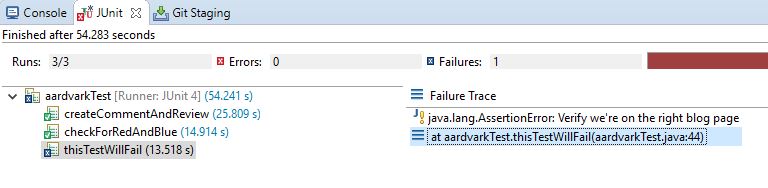
You will notice if you run this code that test “thisTestWillFail” does exactly what you’d expect … and fails due to a bad assertion.  I wanted you to be able to see that – you need the information in your assertion to make sense when this does happen.

Perhaps you’d like to have a go at turning it from an assertion into a validation using exception handling as we’ve seen before?


Extension material

Attempt to create your own JUnit tests for my blog page, and include your own assertions.


Intermission

We're about 2/3 of the way through the curriculum material I've planned out.  I'm going to take an intermission at this point and start a new series to look at some Java basics.

As we've gone through this series, the technical difficulty level has been increasing, and I want to provide an opportunity for those who want to get deep into the automation code to get up to speed before we continue into our most important area yet - the one we've all invested all this time to get to ... useful, maintainable checking automation.

Project Aardvark: Script 3, using assertions and validations with JUnit

/*
 * The following reuses previous scripts using JUnit and includes 
 * both assertions and validations
 * 
 * Mike Talks, Aug 2016
 */

import java.util.concurrent.TimeUnit;

import org.junit.Test;
import static org.junit.Assert.*;


import org.openqa.selenium.By;
import org.openqa.selenium.WebDriver;
import org.openqa.selenium.WebElement;
import org.openqa.selenium.chrome.ChromeDriver;
import org.openqa.selenium.firefox.FirefoxDriver;
import org.openqa.selenium.support.ui.ExpectedCondition;
import org.openqa.selenium.support.ui.Select;
import org.openqa.selenium.support.ui.WebDriverWait;

import com.google.common.base.Verify;

public class aardvarkTest {

@Test
public void thisTestWillFail() 
{

System.out.println("thisTestWillFail");

        // Create a new instance of the Chrome driver
        // This copies all the information about the page we've loaded into
        // the page_item object
        //WebDriver page_item = new FirefoxDriver();
    WebDriver driver = new ChromeDriver();
   
        // Open our target page ... a previous blog article
        driver.get("http://testsheepnz.blogspot.co.nz/2016/07/im-hoping-that-this-blog-will-have-most.html");

        /*
         * THIS NEXT STEP WILL FAIL
         */
                
        //Assert we're on the right page - this will fail outright if not
        assertTrue ("Verify we're on the right blog page - THIS WILL FAIL",
        driver.getPageSource().contains("THIS TEXT IS WRONG"));
        
        /*
         * THE TEST WILL NOT GET FURTHER THAN THIS
         */
        
        
// Verify if there is a blue aardvark in the page
try { 
assertTrue("Verify the page contains that blue aardvark", 
(driver.getPageSource().contains("blue aardvark"))  );
}
catch (Error e) {
System.out.println("ERROR");
System.out.println(e.toString());
}
       
// Verify if there is a blue aardvark in the page
try { 
assertTrue("Verify the page contains that red aardvark", 
(driver.getPageSource().contains("red aardvark"))  );
}
catch (Error e) {
System.out.println("ERROR");
System.out.println(e.toString());
}
             
        // We are now going to capture an element of the current page
        // I've used developer tools to find the ID for it
        // This is the main body of the piece (and excludes comments & title)
        WebElement element = driver.findElement(By.id("post-body-8711143007795160191"));
       
// Verify if there is a blue aardvark in the post body
try { 
assertTrue("Verify the page contains that blue aardvark", 
(element.getText().contains("blue aardvark"))  );
}
catch (Error e) {
System.out.println("ERROR");
System.out.println(e.toString());
}
        
// Verify if there is a blue aardvark in the post body
try { 
assertTrue("Verify the page contains that red aardvark", 
(element.getText().contains("red aardvark"))  );
}
catch (Error e) {
System.out.println("ERROR");
System.out.println(e.toString());
}

}

@Test
public void createCommentAndReview() 
{

System.out.println("createCommentAndReview");

// Create a new instance of the Chrome driver
// This copies all the information about the page we've loaded into
// the driver object
WebDriver driver = new ChromeDriver();

// Open our target page ... a previous blog article
driver.get("http://testsheepnz.blogspot.co.nz/2016/07/im-hoping-that-this-blog-will-have-most.html");

// Print out the page title
System.out.println("Page title is: " + driver.getTitle());

driver.manage().timeouts().implicitlyWait(1, TimeUnit.SECONDS);

        //Find the frame containing "enter your comment"
        java.util.List<WebElement> iframes
        = driver.findElements(By.tagName("iframe"));
int chosenFrame = -1;
for (int i=0 ; i < iframes.size() ; i++)
{
//This moves you back out of the frame you've just been in
driver.switchTo().defaultContent();
System.out.println("Check frame");

//Select the ith frame
driver.switchTo().frame(i);
if (driver.getPageSource().contains("Enter your comment"))
{
chosenFrame = i;
System.out.println("Found frame");
break;
}          
        }

// Select to comment as "anonymous"
Select select = new Select(driver.findElement(By.name("identityMenu")));
// select.selectByIndex(8);
select.selectByValue("ANON");

// Select the comment body
String stringComment = "This is my comment";
WebElement element = driver.findElement(By.id("commentBodyField"));
element.sendKeys(stringComment);

// Select to preview
element = driver.findElement(By.id("postCommentPreview"));
element.submit();

//Assert that the stringComment can be seen on the page
assertTrue("Assert that we can see " + stringComment + "on page", 
driver.getPageSource().contains(stringComment));

// Verify that we are told "Anonymous said" 
try { 
assertTrue("Verify the page contains that 'Anonymous said'", 
(driver.getPageSource().contains("Anonymous") && driver.getPageSource().contains("said"))  );
}
catch (Error e) {
System.out.println("ERROR");
System.out.println(e.toString());
}

}

@Test
public void checkForRedAndBlue() 
{

System.out.println("checkForRedAndBlue");

        // Create a new instance of the Chrome driver
        // This copies all the information about the page we've loaded into
        // the page_item object
        //WebDriver page_item = new FirefoxDriver();
    WebDriver driver = new ChromeDriver();
   
        // Open our target page ... a previous blog article
        driver.get("http://testsheepnz.blogspot.co.nz/2016/07/im-hoping-that-this-blog-will-have-most.html");

        //Assert we're on the right page - this will fail outright if not
        assertTrue ("Verify we're on the right blog page",
        driver.getPageSource().contains("I'm hoping that this blog will have the most comments"));
        
// Verify if there is a blue aardvark in the page
try { 
assertTrue("Verify the page contains that blue aardvark", 
(driver.getPageSource().contains("blue aardvark"))  );
}
catch (Error e) {
System.out.println("ERROR");
System.out.println(e.toString());
}
       
// Verify if there is a blue aardvark in the page
try { 
assertTrue("Verify the page contains that red aardvark", 
(driver.getPageSource().contains("red aardvark"))  );
}
catch (Error e) {
System.out.println("ERROR");
System.out.println(e.toString());
}
             
        // We are now going to capture an element of the current page
        // I've used developer tools to find the ID for it
        // This is the main body of the piece (and excludes comments & title)
        WebElement element = driver.findElement(By.id("post-body-8711143007795160191"));
       
// Verify if there is a blue aardvark in the post body
try { 
assertTrue("Verify the page contains that blue aardvark", 
(element.getText().contains("blue aardvark"))  );
}
catch (Error e) {
System.out.println("ERROR");
System.out.println(e.toString());
}
        
// Verify if there is a blue aardvark in the post body
try { 
assertTrue("Verify the page contains that red aardvark", 
(element.getText().contains("red aardvark"))  );
}
catch (Error e) {
System.out.println("ERROR");
System.out.println(e.toString());
}

}

}

Tuesday, August 16, 2016

AUTOMATION 23 - GUI 10, Switching to Chrome

Technical difficulty: ****

Last week I reported on the recent changes to Selenium WebDriver.  Specifically they impacted using Firefox out-of-the-box, meaning you needed to download an position a new driver to make it work.

I was hoping it'd be all sorted by today - but alas no.  Although generally good, I'm getting issues on some basics - to confirm it's the new Gecko driver, I've tried running on Chrome, and found the issues vanish.

Update Selenium WebDriver in your project area

Switching to Chrome is relatively easy - but first we need to update our version of WebDriver used in our project.  Start with downloading the latest version of Selenium Webdriver here, and extracting it to somewhere on your system (remember where).

Under Eclipse, I've gone into my project gone Build Path -> Configure Build Path


There I've removed the previous .jar files for the last Selenium WebDriver build I've done, and then used Add External Jars to add back in all the new ones.


Put the browser driver into place

The Google Chrome driver (and indeed the Gecko driver) are a form of middleware which acts between the software of the Selenium WebDriver and the browser itself.  You'll sometimes hear the word "marionette" used to describe it, because this software essentially "pulls the strings" on your target browser.

Now, you need to download the Google Chrome Driver from here,


Now a little more tricky - to make this work it needs to be copied into your project workspace, for me it goes ...


You might notice I've also placed a version of the Firefox Gecko driver there as well.


Change your code

This is really simple - first off in your header you need to include the following,

    import org.openqa.selenium.chrome.ChromeDriver;

This includes the objects and methods needed for the ChromeDriver.  You then change your declaration of,

    WebDriver driver = new FirefoxDriver();

To ...

    WebDriver driver = new ChromeDriver();

That's pretty much it.  Although in reality there can be oddities thrown out by a change of browser - I found mine regarding the selection of frame which contains "Enter your comment".  I modified my code to use an algorithm which looked through all the frames on the page, selecting the one which says "Enter your comment" ...


I've already committed these changes to my Github page - find me there.  Really it's the second project which has had the most revision to include that frame search, which is here.

Wednesday, August 10, 2016

AUTOMATION 22 - GUI 9, Maintenance ... maintenance everywhere!

If you've been following along with the exercises at home, you have probably noticed that all of a sudden, everything's broken!

When you run, you get a lot of red like this ...


With the launch of Firefox 48, some of the WebDriver calls are being handled differently, and so you need some extra software set up, specifically the Gecko Driver.   On top of this you need the new WebDriver .jar files downloaded and added to your library.  Right now these download are currently are still in beta.

Alan Richardson has an article here about some of the changes required.  He's also raised a defect in the current version, which you can read hereThanks Alan for raising that - why we need people giving feedback in the beta, and not relying on others to raise.

I know some groups I've talked to who are circumventing this for now by freezing their version of Firefox to 47.  This is a good measure until we're out of beta, but it has to be a stopgap measure.  You can't freeze yourself to a 2 year old version of Firefox because you're scared of the update and the maintenance involved.

Here's a fact of automation - maintenance happens.  Or rather, should happen.  And there's no way to avoid that.  But a future feature will be about how to minimise that.  [Hint - ideally so it's not much "maintenance, maintenance everywhere!", but "maintenance in just one place"]


With those sticking to Firefox 47, this probably makes sense until WebDriver is out of Beta - just don't put it off forever!  The longer you leave it, the more the pain when you do need to update - and if you're running on a 1 or 2 year old version of Firefox, can you comfortably say many out there will be using the same browser?  Doesn't that undermine any confidence in the automated checks you're running?  You're saying it "would work okay ... if you're using a really old browser".

Scarily, on the other side of the coin, if you're testing on a Firefox or Chrome browser - new versions of those come out every couple of months!  Which almost always means that if you're testing today on a waterfall project, it's likely that won't be the version you release on.  It's another reminder of how we can't negate risks, only minimise them.

When the full version is released, I'll try and do a follow up, and also recondition my previous posts for any new steps.  Catch you then!


Wednesday, July 27, 2016

AUTOMATION 20 - GUI 8, Building a Selenium test from concept to execution

Technical difficulty: ****

After my initial script in Selenium, I wanted to move to a more complex script later on.  Along the way though I've encountered a few difficulties.

Today I'm not going to just talk you through my new script and what it does, but also looking at the problems I encountered and how I solved them.  This will help open the lid on how to solve problems yourself when you hit roadblocks creating a basic script.  [Hint - ninja Google skills]

The good news though - once you've overcome a problem once, you get better at avoiding it a second time!


Problem 1: Flawed concept

I originally created the post "I'm hoping that this blog will have the most comments" - hoping that just that, I'd be able to create a script which would be able to have you generate a comment on that blog.

The plan was to select "Anonymous" user, add a comment, and publish it.  Only of course, that's how spam happens - the kind of thing that goes "interesting blog - check out my link where I got 50% off the retail price of brand name shoes".

Because such behaviour is abused, there's a Captcha filter to ensure that you're really a human being.  [Of course ironically we're trying to do this without being a human being].


Problem 2: Where's the comment box?

It looks so simple - we should be masters at this - I used the developer tools to locate elements on the comment box, and set up commands ...


But when I ran it, it couldn't be found.  In fact it went horribly wrong ...


This took some digging around with developer tools to investigate - but I noticed the comment box was a #document which had it's own header and footer.  That is to say it was provided in another frame to the main one we've used to far!


Fortunately WebDriver has a command driver.switchTo().frame() to allow us to move through frames.  Typically the main frame we use is driver.switchTo().frame(0).

I used a very simple piece of code added to our last script

page_info.switchTo().frame(4);
// Confirm if "Enter your comment" is there
if ( page_info.getPageSource().contains("Enter your comment"))
{
   System.out.println("Enter your comment");
}

I kept adjusting increasing the number in .frame() until I got "Enter your comment" found - then I knew I was in the right frame.

Extension material - try amending our previous script now, and see if you can get it to work for you.


Script brief

Because of these problems, the aim for the script has been slightly change, but that's all good (we learn more that way).

Our steps are as follows,

  • Load up my blog page, and select our desired frame.
  • Select "Anonymous" from the drop down list
  • Enter some text into the comment field
  • Select the Preview button
  • Confirm we see "Anonymous said" and the details of our comment

This gives us some nice experience using the frame selection, using drop-downs, entering text and selecting buttons.  Some core features covered!


I'll now take you through the new script published here a section at a time, explaining what each section does.  I do suggest you copy and paste it into Eclipse and have a bit of an experiment yourself using last time's guidelines.

WebDriver driver = new FirefoxDriver();
// Open our target page ... a previous blog articledriver.get("http://testsheepnz.blogspot.co.nz/2016/07/im-hoping-that-this-blog-will-have-most.html");

We pretty much covered this last time - declares a new WebDriver object, and opens the blog page.  Importantly, after last time's discussion, I've decided to use the nomenclature of "driver" for the object in keeping with most sample scripts you'll encounter, over the "page_item" I was using previously.

driver.manage().timeouts().implicitlyWait(1, TimeUnit.SECONDS);
Because I was having issues when I couldn't find the comment box, I wasn't sure if my checks were occurring before the page had loaded, so just put a small wait in to be sure.

//Switch to the frame that comments are kept indriver.switchTo().frame(4);

As before, this moves us into the page frame where we know that comments are.

//Select to comment as "anonymous"
Select select = new Select( driver.findElement(By.name("identityMenu")) );//select.selectByIndex(8);select.selectByValue("ANON");

Useful to just mention - the WebElement is a subclass of WebDriver (a page is made of multiple WebElements after all).  Likewise the Select object is a subclass of a WebElement object for a drop down list.

This command allows us to select one of the drop down options - we can use .selectByValue which compares against a text value you can get from prying with the developer tools.

Commented out is the method .selectByIndex - this chooses the 8th element in the drop down list.  Try uncommenting it out, and commenting out the .selectByValue commend.  Indeed, try altering the command to pick different items in the drop down.

//Select the comment body fieldString stringComment= "This is my comment";WebElement element = driver.findElement(By.id("commentBodyField"));element.sendKeys(stringComment);
This selects the comment text box and types in "This is my comment" using the .sendKeys command.

 //Select to preview
element = driver.findElement(By.id("postCommentPreview"));
element.submit();

This finds the Preview button and uses the .submit command to press it.

Finally I use some .contains checks to confirm that I can see "Anonymous said" and "This is my comment" on the page.  You might wonder why I'm testing "Anonyous" and "said" separately - if you check the page html code, you'll see there's an invisible character between the two words which interferes with the .contains checking!


Extension material

We've covered a lot today, although to only a shallow level.  Do look up the commands - some of these I looked up by simple Google searches of "WebDriver select drop down" and seeing what examples were out there to try.

An odd quirk I found with the Firefox page opened by WebDriver, I'd usually be signed out of any webpages - that could be worth exploring.

Come up with ways to select other options to comment on my blog page.  Maybe even try and log in and generate a comment without needing Captcha.

As always - have fun whilst you learn.

Project Aardvark: Script 2, Creating and previewing a comment

// "Project Aardvark" Part 2
// This code will attempt to post an anonymous comment & preview it
// Mike Talks 18/05/2016

import java.util.concurrent.TimeUnit;

import org.openqa.selenium.By;
import org.openqa.selenium.WebDriver;
import org.openqa.selenium.WebElement;
import org.openqa.selenium.firefox.FirefoxDriver;
import org.openqa.selenium.support.ui.ExpectedCondition;
import org.openqa.selenium.support.ui.Select;
import org.openqa.selenium.support.ui.WebDriverWait;


public class addComment {

    public static void main(String[] args) {

        // Create a new instance of the Firefox driver
        // This copies all the information about the page we've loaded into
        // the driver object

        WebDriver driver = new FirefoxDriver();
       
        // Open our target page ... a previous blog article
        driver.get("http://testsheepnz.blogspot.co.nz/2016/07/im-hoping-that-this-blog-will-have-most.html");
       
        // Print out the page title
        System.out.println("Page title is: " + driver.getTitle());


        // We need to add a small pause for loading
        driver.manage().timeouts().implicitlyWait(1, TimeUnit.SECONDS);
       
        //Switch to the frame that comments are kept in
        driver.switchTo().frame(4);
       
        //Select to comment as "anonymous"
        Select select = new Select( driver.findElement(By.name("identityMenu")) );
        //select.selectByIndex(8);
        select.selectByValue("ANON");

        //Select the comment body field
        String stringComment= "This is my comment";
        WebElement element = driver.findElement(By.id("commentBodyField"));
        element.sendKeys(stringComment);
       
        //Select to preview
        element = driver.findElement(By.id("postCommentPreview"));
        element.submit();
       
        //Confirm page contains "Anonymous said" / Comment
        if ( driver.getPageSource().contains("Anonymous") &&
                driver.getPageSource().contains("said") )
        {
            System.out.println("Confirmed: Anonymous said");
        }
       
        if ( driver.getPageSource().contains(stringComment))
        {
            System.out.println("Confirmed: " + stringComment);
        }      
       
    }
   
}

Friday, July 22, 2016

AUTOMATION 19 - GUI 7, Resources for exploring WebDriver commands

Technical level: ***

With our first Selenium WebDriver script written and working, it's a good place to think about resources and methods for finding out about other features and definitions of the WebDriver class.

Why we write - to explore

In the Selenium script that I published previously, I decided to change the name of the WebDriver object from the standard "driver" that I've always seen to "page_item".

For me, this was very much driven by my understanding of what the WebDriver class represents, a representation of all the data and selectable methods available on a page.

It led to some interesting conversations on Twitter as well, which I found really useful ...


The truth is, I find it hard to actually find a good explanation of the WebDriver class which we're using there.  But conceptually when I use it and the methods, I seem myself manipulating the page object with it.

Richard pointed out, that's useful as a start point, but you also need to understand that the WebDriver (and why it's often named "driver"), isn't just the page object, but it's the "thing" that manipulates the page as well.

As Andrew confirmed, to forget about the "driver functionality" in there is equivalent to thinking about a puppet, without thinking about the strings and marionette controls.

Searching the net, I've struggled, even on the Selenium homepage to find a definitive list of all the commands available.  So plan B ...


WebDriver available parameters and functions

So, I've been somewhat frustrated trying to find a definitive list of what functions are available to be using WebDriver in Java.  I can find a few pages and books (listed below) giving some useful functions, but not a definitive library list.

One method that I use to explore functionality comes through Eclipse, and I'm going to share this simple (but powerful) approach with you ...

Eclipse will attempt to autofill when you reference an object attribute/method.  So with the code we've been using, if you type "page_info." you get a set of prompts for what's available - you can explore these, and even Google for more information.


The same happens when you explore the WebElement object "element." ...


This allows you to peel back and explore what features are available within these objects - have a go now.  Once you find a suggested name, you can explore it by either Googling, or trying it out through exploration to see what happens.


Some useful resources

The following are some free online resources which can help you get started,
Alan Richardson has a couple of really useful books, which you can order here,
  • Java For Testers - this is a really handy and relatively quick book which follows a similar pattern to my blog (more accurately I probably stole his style) - it explores in detail with examples you can follow along with.  I have a couple of Java books at home, and typically they're lengthy and intimidating tomes.  This got me where I needed with sufficient levels of detail - although I come from a C++ background.
  • Selenium Simplified - I only found out about this book this week.  Follows the same very strongly hands-on approach (which of course suits me fine), working through a lot of examples in detail.

Dave Haeffner wrote The Selenium Guidebook which came highly recommended, and includes video tutorials if you go for the full package.  He also has a weekly newsletter you can subscribe to.


Mark Collin has written Mastering Selenium WebDriver, which is also on my reading list.

And don't forget, if you're in New Zealand, and want a Selenium course, then my friend Kim Engel runs a Selenium courseKim'll fix it!  I've received a lot of help from Kim's instructor with this series.